BidAmerica 5.1
Focused on your trade. Refined to your area.
BidAmerica 5.1 enhances personalization across the platform, introducing smarter geographic filtering and trade-based profile alignment. By defining your Trade Area and Trade Type, BidAmerica now tailors your project feed to reflect where you operate, creating a more focused, relevant bidding experience from the moment you log in.
Launching: Soon
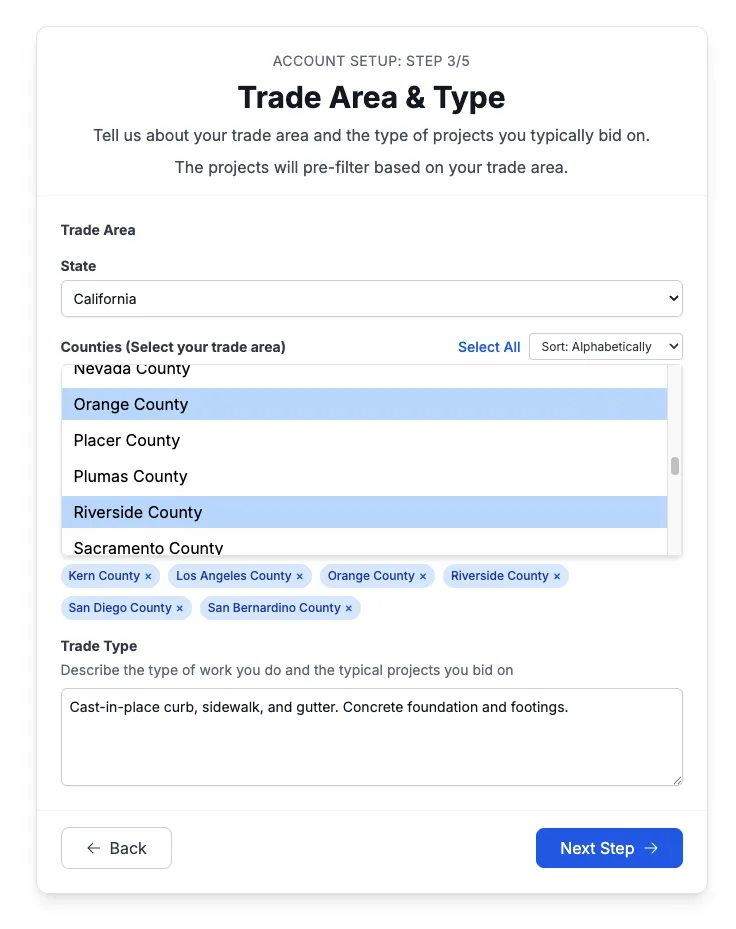
Built Around Your Work
BidAmerica 5.1 introduces a new personalization step designed to make your experience more focused from the moment you log in.
On your next visit, you’ll be prompted to define:
Your Work Area: Select the counties where you actively perform work.
Your Work Type: Describe your trade, the type of projects you pursue, and the scope you typically bid.
This allows BidAmerica to better understand your business, not just what you search, but what you actually do.
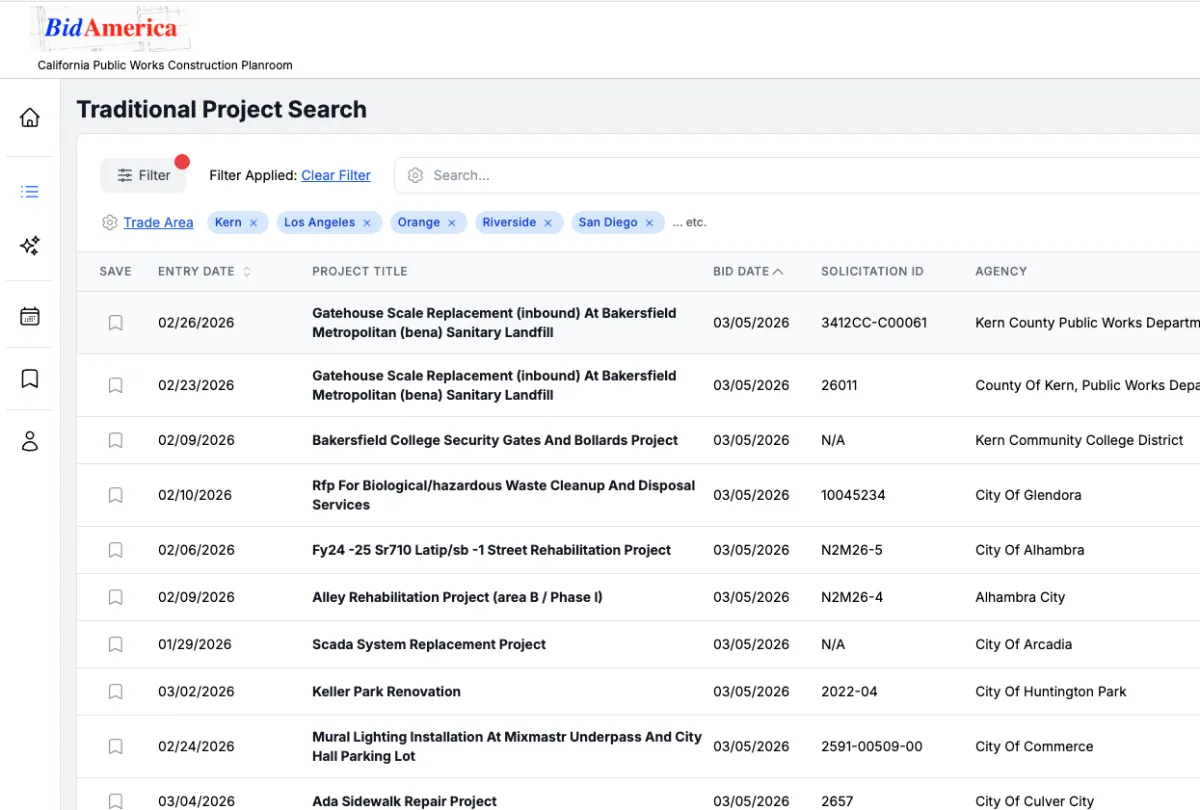
Projects Pre-Filtered to Your Counties
Once your Work Area is set, BidAmerica automatically prioritizes projects within your selected counties.
This enhancement now applies to:
Traditional Search
My Daily Projects
Your dashboard becomes more geographically relevant, surfacing opportunities where you actually work and compete.
No extra setup required beyond your initial selection. Just log in and get projects aligned with your territory.
Manage Your Trade Profile
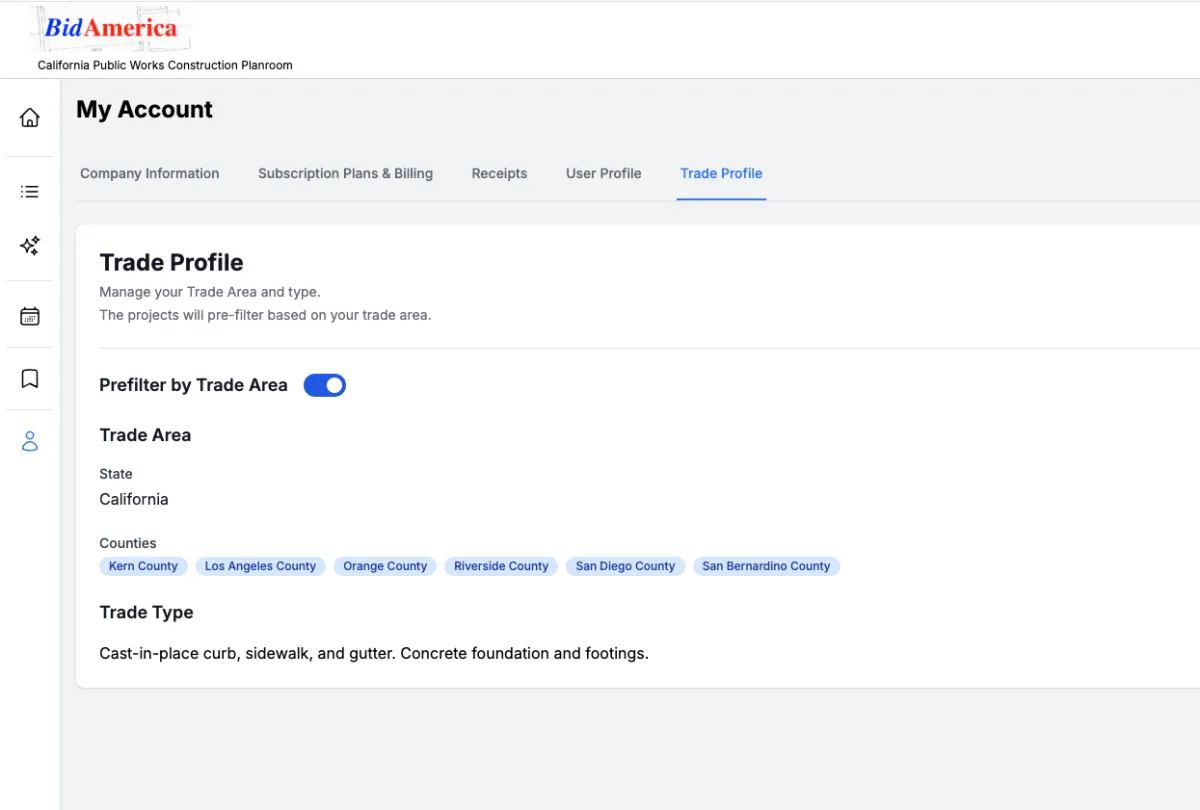
Your Trade Area and Trade Type can be managed at any time within your account. Simply visit the My Account page and open the Trade Profile tab to review or update your selections.
From this section you can:
Control the Trade Area Pre-Filter: Turn the automatic county pre-filter on or off depending on how you prefer to browse projects.
Update Your Trade Area: Add or remove counties where you actively perform work.
Edit Your Trade Type: Adjust your description to reflect your trade, specialties, or the types of projects you typically pursue.
This flexibility allows you to keep your profile aligned with your current work territory and bidding strategy.
Improved Support Access
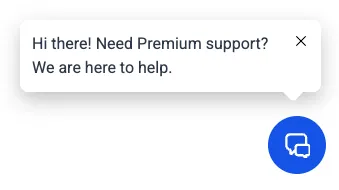
We’ve also repositioned our support chat to make it easier to access help when you need it.
The live chat and support form can now be found along the middle right side of the screen, reducing interference with other on-screen tools and navigation elements.
From this panel you can:
Start a Live Chat: Connect with a support representative for immediate assistance.
Submit a Support Form: Send a request if you need help locating project details or have general questions about the platform.
Only for Premium Members.
Whether you're looking for the Plan Holder List (PHL) on a project or need help navigating the system, our team is there to assist.
What You Need to Know
As part of the 5.1 update, you’ll be prompted on your next login to define your Work Area and Work Type. This is a one-time setup designed to improve how projects are delivered to you.
You’ll select the counties where you actively perform work. These counties will be used to personalize your project views.
You’ll provide a short description of your trade, scope, and the type of projects you typically pursue. This helps BidAmerica better align results with your business.
Once saved, your selected counties will automatically apply to Traditional Search and My Daily Projects, ensuring those views reflect your defined work territory.
You can update your Work Area or Work Type at any time within your account settings.
FAQ
Will I be required to enter my Work Area and Work Type?
Yes. On your next login, you’ll be prompted to complete this quick setup. It only takes a moment and helps tailor your experience moving forward.
Can I change my Work Area or Work Type later?
Yes. You can update your selected counties or edit your Work Type at any time within your account settings.
Where does the Work Area pre-filter apply?
Your selected counties will automatically apply to:
- Traditional Search
- My Daily Projects
This ensures those views reflect opportunities within your defined territory.
Can I clear the pre-filter and view all projects in the database?
Yes. When viewing the project table, simply click the Clear Filter button to remove the Work Area filter and display all available projects.
Does this change how Global AI Search works?
No. Global AI Search continues to search across the entire project database unless you apply additional filters.
COMPANY
SERVICES
UPDATES
Partner Companies
LEGAL

Phone: (951) 528-0528
© Copyright 2026. BidAmerica. All Rights Reserved.